OpenCanvas v5 vs Current PWA

Comparison 1 / 16

Bottom tab model

This comparison shows a tab-model difference: v5 uses Map, List, Survey, and Activity, while the current PWA uses Map, Activity, Survey, and History.

Candidate type: design comparison Surface: field app shell Decision needed

v5 target screenshot

Building panel over Map, with Map/List/Survey/Activity still visible.
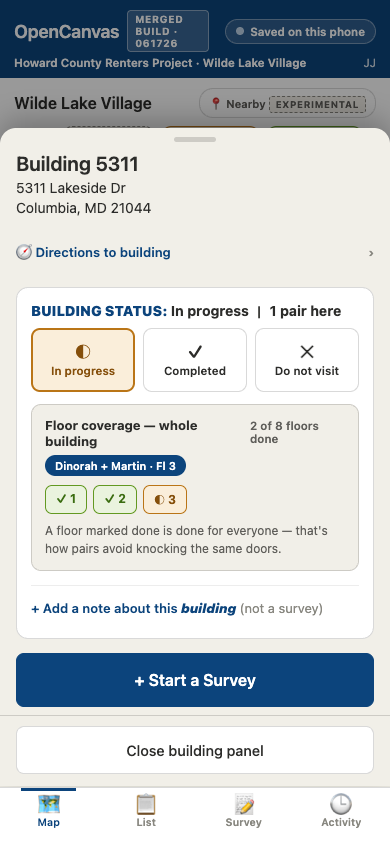
v5 building panel with bottom tabs Map, List, Survey, and Activity

Current PWA screenshot

Selected building panel with Map/Activity/Survey/History navigation.
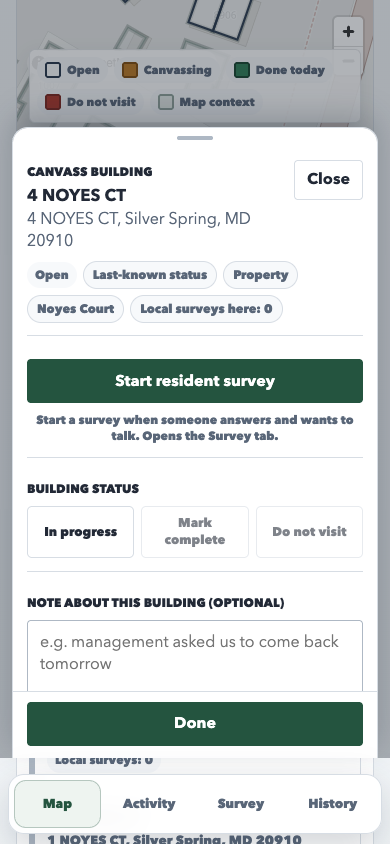
current PWA building panel with bottom tabs Map, Activity, Survey, and History

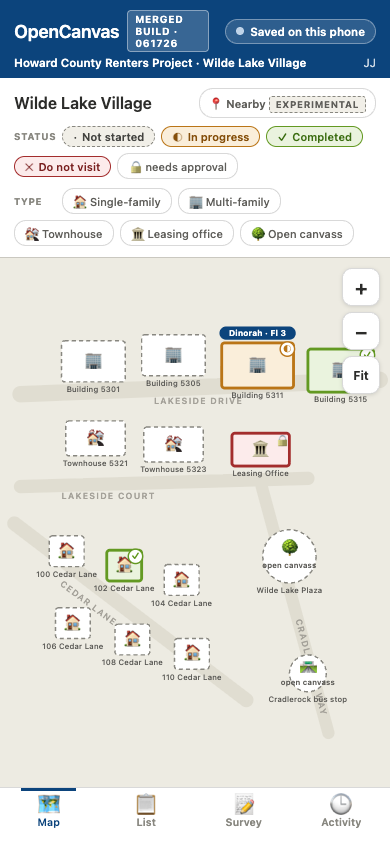
Map legend and marker encoding

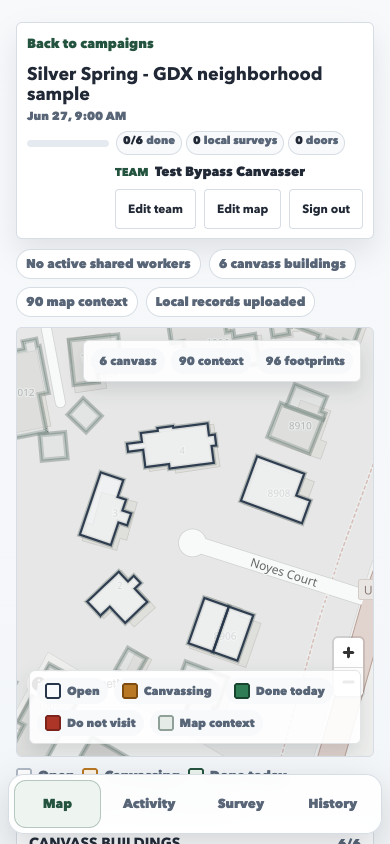
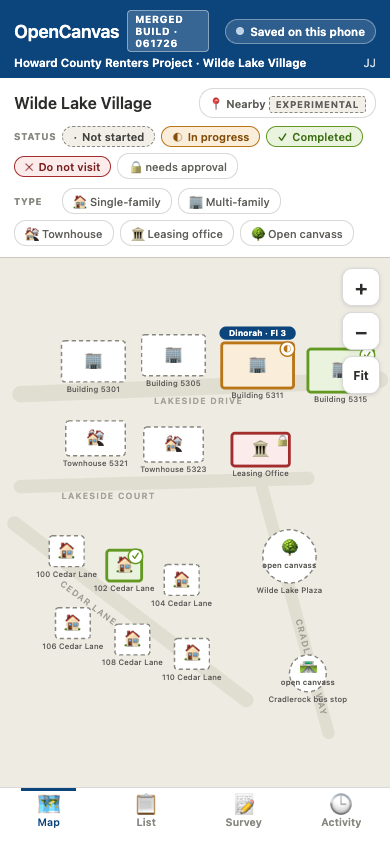
This comparison shows a map-encoding difference: v5 separates status and building type in the legend and markers, while the current PWA shows status chips and a MapLibre building list below the map.

Candidate type: design comparison Surface: Map Decision needed

v5 target screenshot

Status glyphs, building-type icons, and separate Status/Type legend rows.

v5 map with status legend, building type legend, and encoded markers

Current PWA screenshot

MapLibre view with status chips, footprint counts, and a building list below.

current PWA map with status chips and building list below the map

List tab structure

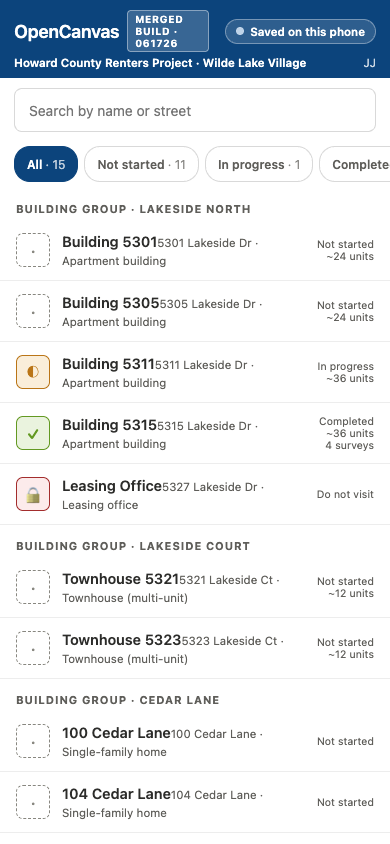
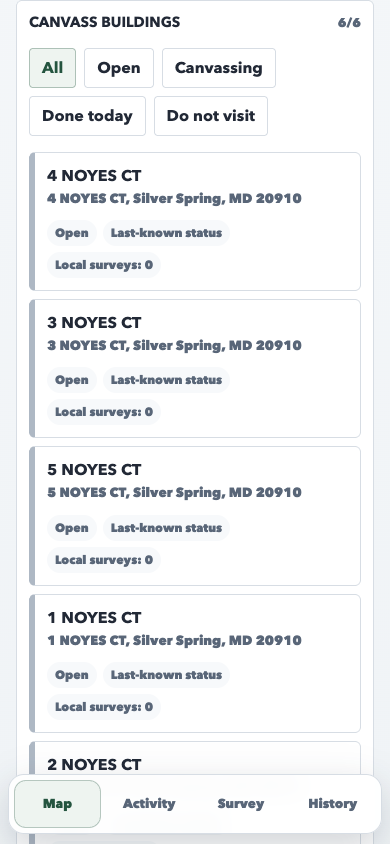
This comparison shows a list-structure difference: v5 has a dedicated List tab with search, filters, Nearby first, and grouped rows, while the current PWA keeps the building list inside the Map view.

Candidate type: design comparison Surface: List / Map Decision needed

v5 target screenshot

Dedicated List tab with search, status filters, Nearby first, and group headings.

v5 List tab with search, filters, Nearby first, and grouped building rows

Current PWA screenshot

Building list appears below the Map instead of in a separate List tab.

current PWA Map view scrolled to show the building list and filters

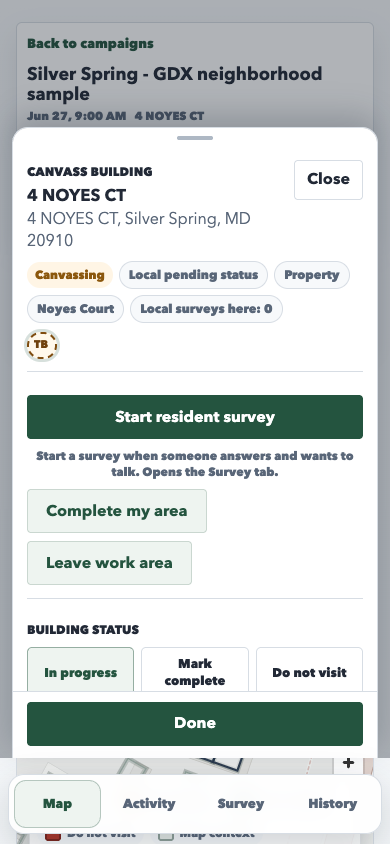
Building panel header density

This comparison shows a building-panel density difference: v5 keeps the header to name and address, while the current PWA puts status, authority, type, group, and local-survey metadata near the top of the panel.

Candidate type: design comparison Surface: building panel Decision needed

v5 target screenshot

Name and address lead the sheet; details move into directions, status, and reference sections.

v5 building panel with compact name and address header

Current PWA screenshot

Header area includes status, authority, type, group, and local-survey metadata.

current PWA building panel with status and metadata near the top

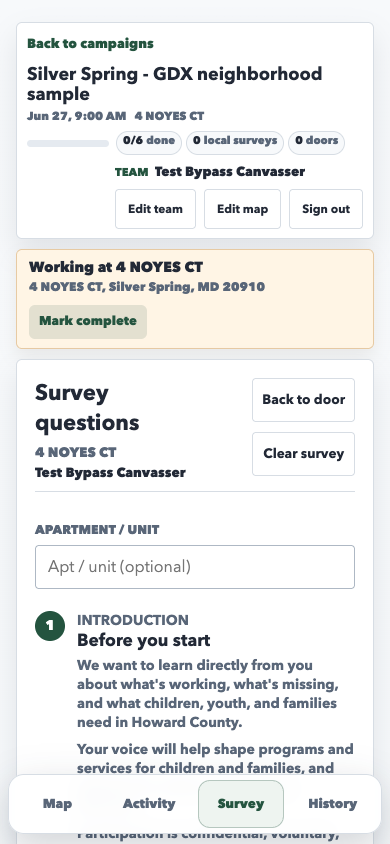
Survey entry modes

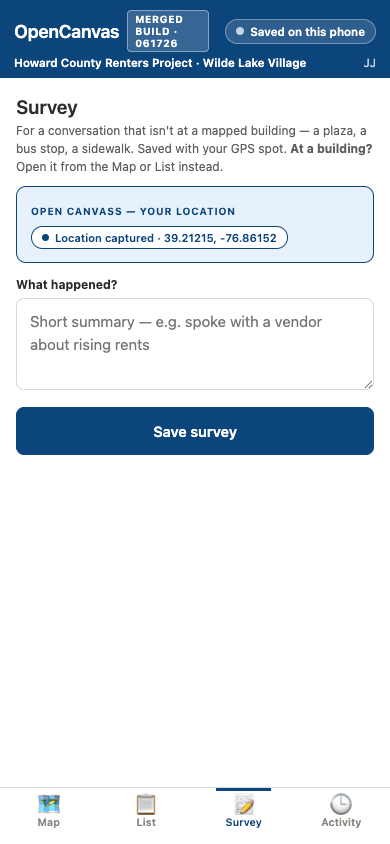
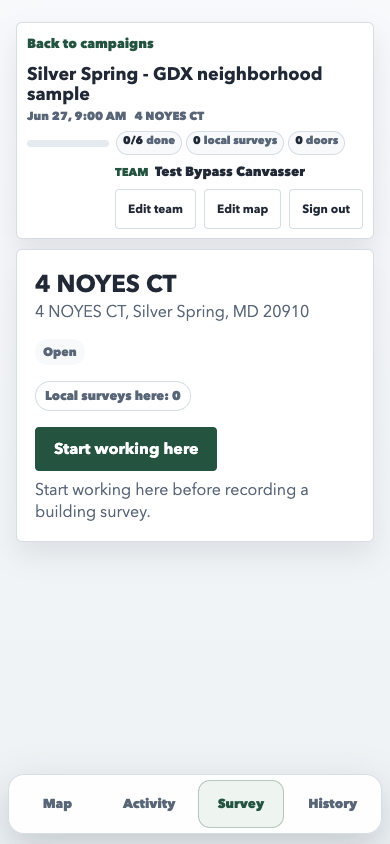
This comparison shows a survey-entry difference: v5 opens a location survey directly from the Survey tab, while the current PWA asks the canvasser to start working at the selected building before recording a building survey.

Candidate type: workflow comparison Surface: Survey Decision needed

v5 target screenshot

Survey tab starts as a ready-to-fill location survey when no building is attached.

v5 Survey tab showing a location survey ready to fill

Current PWA screenshot

With a building selected, Survey asks the canvasser to start working there first.

current PWA Survey tab asking the canvasser to start working at a selected building

Activity and upload status

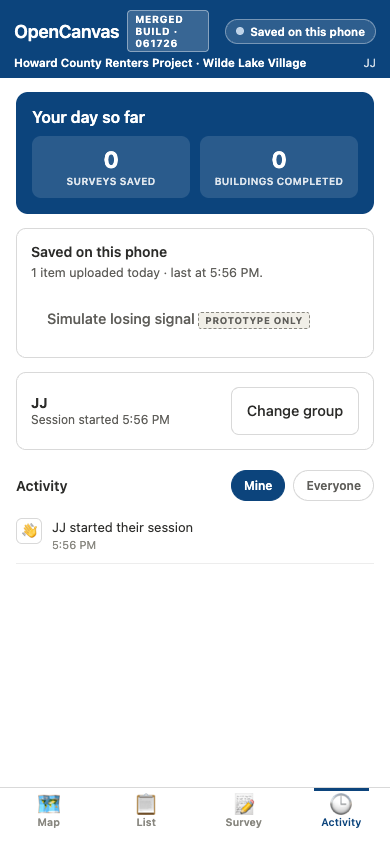
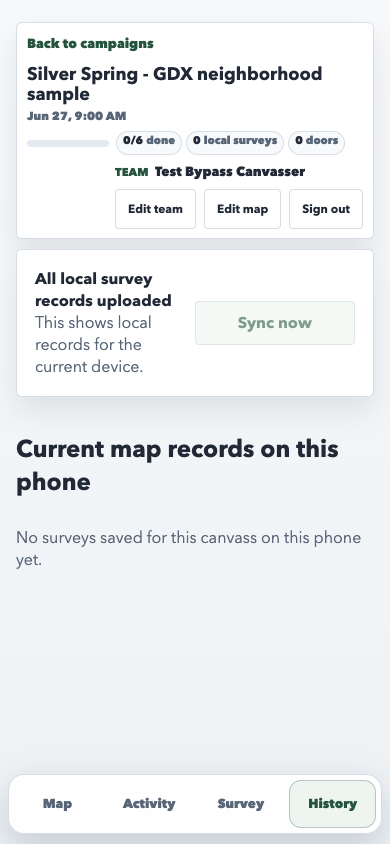
This comparison shows an upload-status placement difference: v5 puts saved-on-phone and upload details inside Activity, while the current PWA shows local upload status in History.

Candidate type: workflow comparison Surface: Activity / History Decision needed

v5 target screenshot

Activity includes day stats, upload details, group controls, and feed filters.

v5 Activity tab showing day stats, saved-on-phone sync status, and feed filters

Current PWA screenshot

History carries the local upload status and current-device survey records.

current PWA History tab showing local upload status and current device records

Session setup and pairing

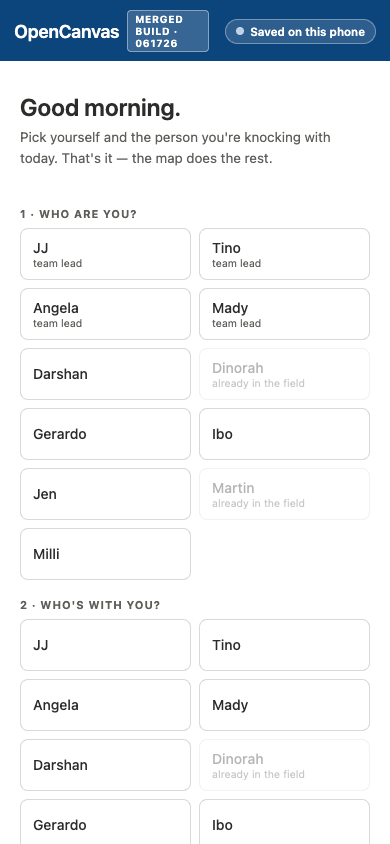
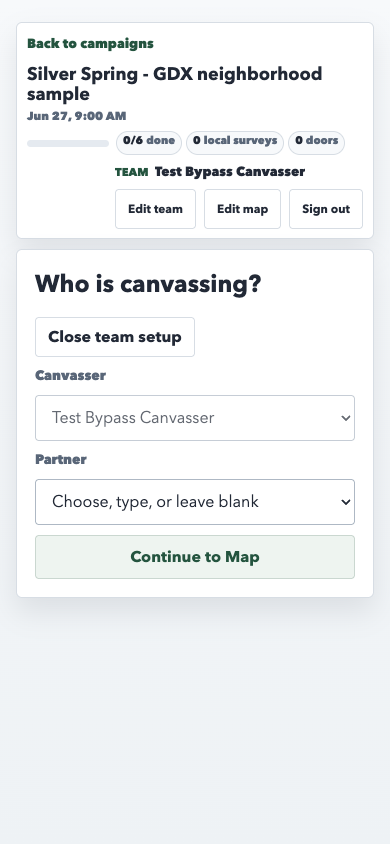
v5 uses a full-screen person and partner picker with button options. The current PWA uses a team setup panel with a fixed canvasser field, partner dropdown, and Continue to Map.

Candidate type: workflow comparison Surface: session setup Decision needed

v5 target screenshot

People are selected from button groups before the canvass starts.

v5 session setup with person and partner button groups

Current PWA screenshot

Team setup appears in the canvass shell with a partner dropdown.

current PWA team setup panel with fixed canvasser and partner dropdown

First-run location prompt

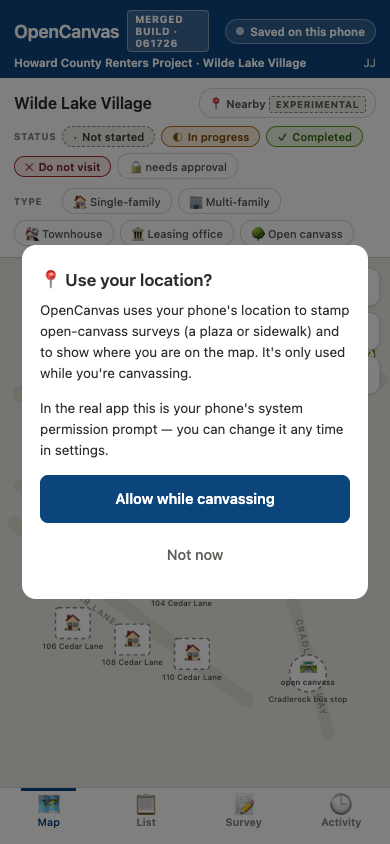
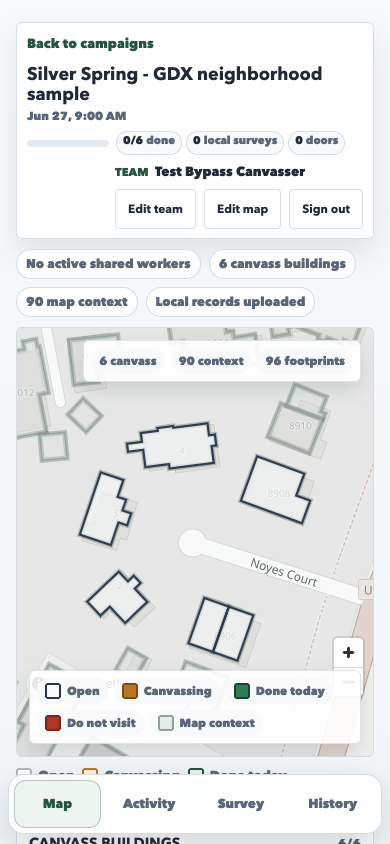
v5 shows a custom location prompt before the map. The current PWA fake-data path opens the map without a location prompt.

Candidate type: workflow comparison Surface: first run Decision needed

v5 target screenshot

Location use is explained in a modal before the canvasser continues.

v5 custom location prompt over the map

Current PWA screenshot

The local fake-data path enters the Map view after team setup.

current PWA map view immediately after team setup

Welcome coach

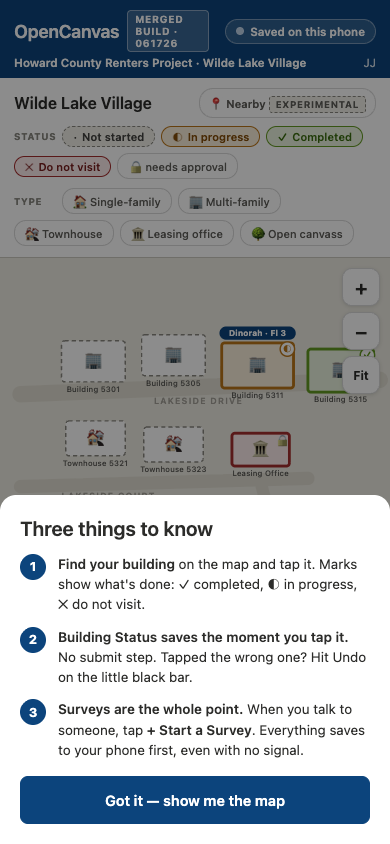
v5 shows a first-run coaching overlay with the core field loop. The current PWA enters the Map view without a matching overlay in this path.

Candidate type: workflow comparison Surface: first run Decision needed

v5 target screenshot

Three field-loop reminders appear over the map.

v5 welcome coach overlay with three field loop reminders

Current PWA screenshot

The same local path shows the map and building list directly.

current PWA map view without a first-run coach overlay

Top banner and canvass context

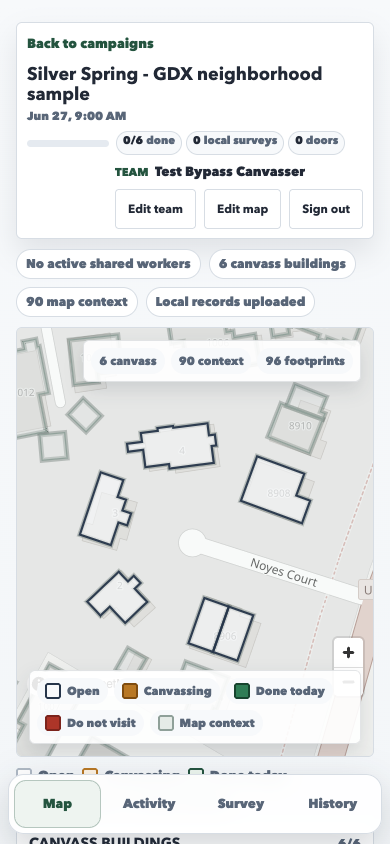
v5 uses a compact fixed banner with save status, campaign area, and session label. The current PWA uses a larger header with campaign details, progress, team controls, and map status chips.

Candidate type: design comparison Surface: field app shell Decision needed

v5 target screenshot

Save status and canvass context sit in a two-row app banner.

v5 map with compact app banner, save status, and session label

Current PWA screenshot

Progress, team controls, map counts, and upload status appear above the map.

current PWA map with campaign header, progress, team controls, and map chips

Nearby mode

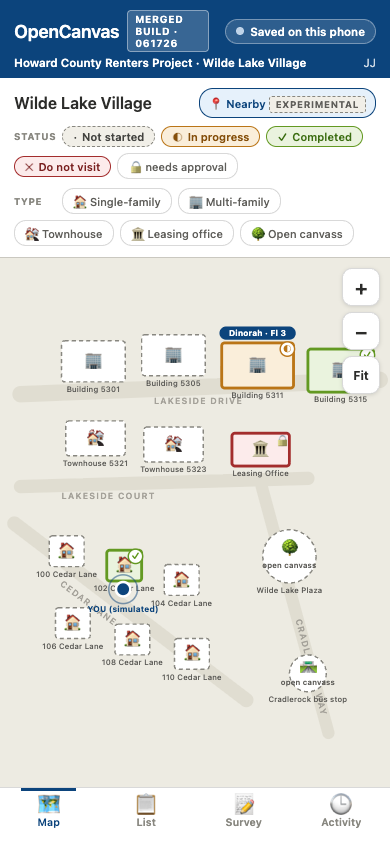
v5 includes an experimental Nearby control and simulated user location. The current PWA map view has no matching Nearby control in this local fixture.

Candidate type: design comparison Surface: Map Decision needed

v5 target screenshot

Nearby is toggled on and the map shows a simulated user location.

v5 map with Nearby enabled and simulated user location

Current PWA screenshot

The map shows status filters and a building list, without Nearby mode.

current PWA map with status filters and no Nearby toggle

Active worker markers

v5 shows another pair on the building marker with floor text. The current PWA shows a shared-worker marker and initials chip after a local work area starts.

Candidate type: design comparison Surface: Map / work areas Decision needed

v5 target screenshot

Pair presence appears as a blue tag with the current floor.

v5 map marker with another pair and floor label

Current PWA screenshot

Shared work appears as a marker and initials chip tied to the selected building.

current PWA map with active shared worker marker and initials chip

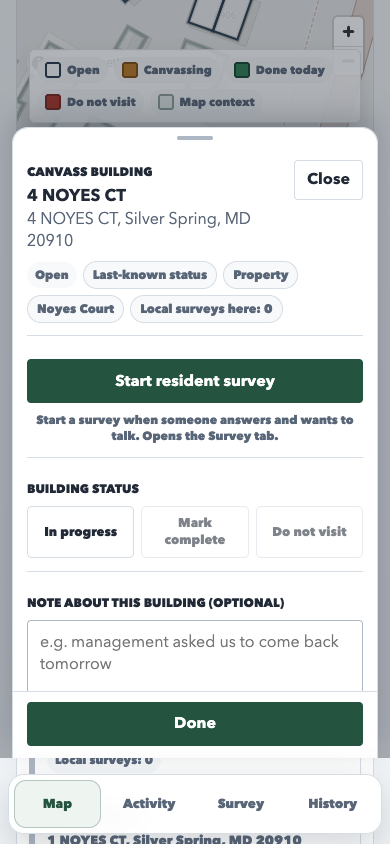
Building note placement

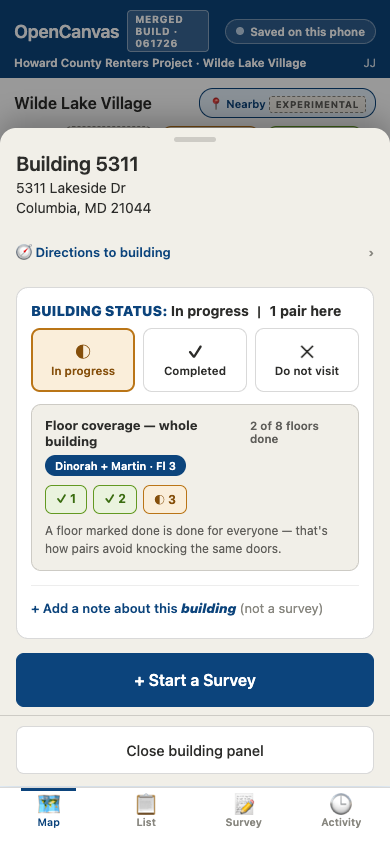
v5 keeps the team note behind a collapsed building-note link. The current PWA shows the note textbox directly in the selected-building panel.

Candidate type: design comparison Surface: building panel Decision needed

v5 target screenshot

The note action is collapsed under Building Status.

v5 building panel with collapsed building note link

Current PWA screenshot

The building note textarea is visible in the main panel flow.

current PWA selected building panel with visible note textarea

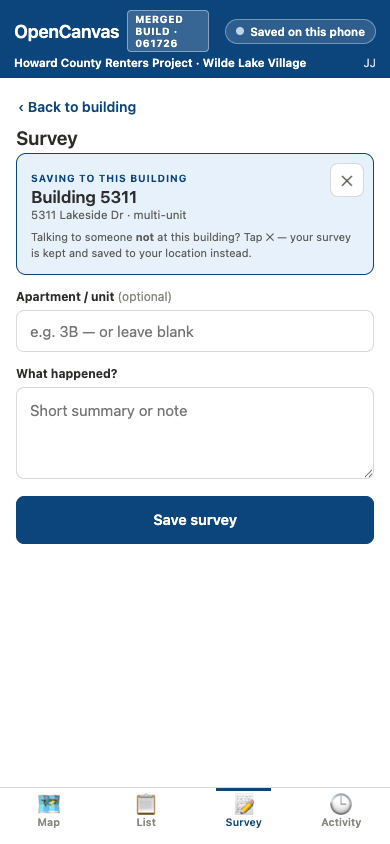
Building-linked survey context

v5 opens a short building-linked survey with a context card and unlink control. The current PWA opens the full resident survey with canvass context and Back/Clear actions.

Candidate type: workflow comparison Surface: Survey Decision needed

v5 target screenshot

Building context is shown in a blue card with an unlink control.

v5 building-linked survey with context card and unlink control

Current PWA screenshot

The resident survey opens with the current canvass context and full form.

current PWA resident survey form with canvass context and full question list

Draft return surface

v5 shows a Survey in progress return bar above the tab bar after leaving a draft. The current PWA shows the active building card and survey controls inside the flow.

Candidate type: workflow comparison Surface: Survey Decision needed

v5 target screenshot

A persistent return bar points back to the building-linked survey draft.

v5 map with survey in progress return bar above the bottom tab bar

Current PWA screenshot

The active building and survey controls remain inside the current survey flow.

current PWA active resident survey with working building card and survey controls

Status completion guardrail

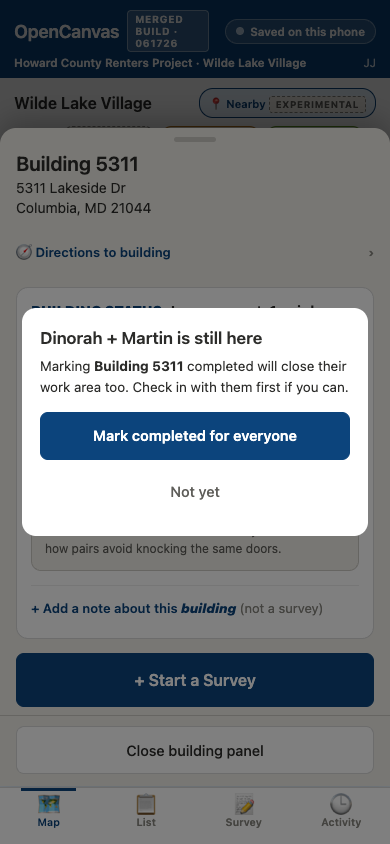
v5 asks before completing a building while another pair is active. The current PWA shows active work-area controls and status buttons for the local worker.

Candidate type: workflow comparison Surface: building status Decision needed

v5 target screenshot

A confirmation appears before completing a building with another pair present.

v5 confirmation modal before completing a building while another pair is active

Current PWA screenshot

The selected building shows active local work-area controls and status buttons.

current PWA selected building with active work-area controls and status buttons